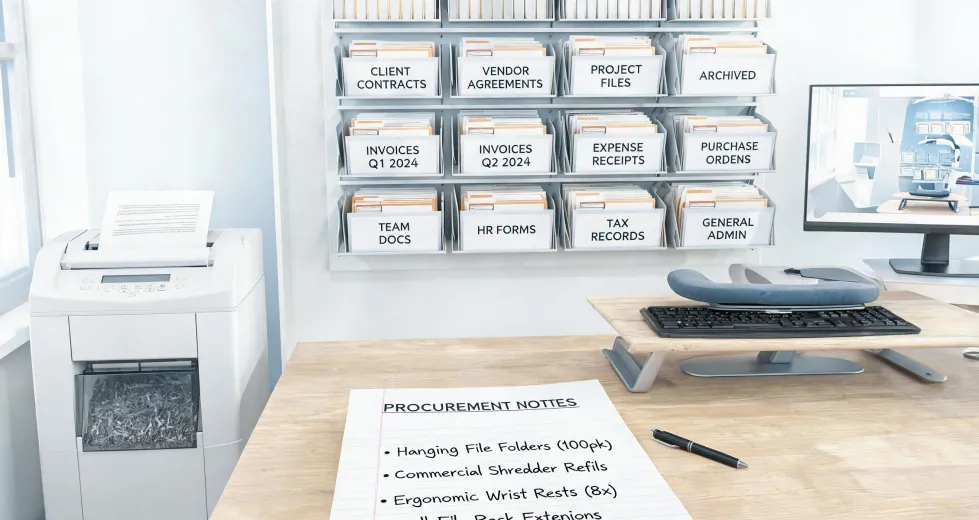
This checklist is for whoever gets stuck with office supplies: the ops manager, the office manager, or the intern who drew the short straw. It covers four things that will bite you if you ignore them—paper specs, the trusty paper cutter, a printer that drops off the WiFi when you change the password, and the desk setup that keeps it all reachable. Four steps. Read them before you order more supplies or fight with that HP printer.
Quick background: I'm a quality and brand compliance manager. I review every piece of branded material that leaves our office—roughly 200+ items a year, from A4 flyers to thick construction paper displays. I've rejected more batches than I can count over small spec misses. The good news: most problems are preventable. The bad news: most people skip the boring steps below and pay for it later.
Step 1: Nail Down Paper Specs Before You Order
The two paper types that cause the most trouble in an office are A4 and construction paper. They're not interchangeable, and their specs matter more than people think.
A4 paper size is 210 × 297 mm (about 8.27 × 11.69 in), per ISO 216. The standard weight for office paper is 80 g/m². Don't just check the package label—measure it. I've seen 'A4' packages that were 2 mm short on length. That's within nobody's tolerance, but it caused jam after jam in a laser printer. That batch got rejected.
Construction paper is a different animal. It's heavier, usually 50–80 lb (roughly 135–216 g/m²), and has a textured surface. But here's the catch: 'construction paper' isn't a standardized term. A 9×12-inch pack from one brand can be 200 g/m², while another brand's 9×12 is 160 g/m². If you're ordering it for a project with a deadline, get the weight and acid-free status in writing.
Pricing reality check: a 500-sheet ream of A4 office paper runs $5–12, and a 50-sheet pack of construction paper runs $3–8 (based on publicly listed prices from major online office suppliers, January 2025; verify current rates). If a supplier quotes drastically below that, question it. The numbers said go with the budget paper once, and I did. My gut said the flimsy sheets would misbehave. Sure enough, they curled in the laser printer and we lost a day to a jam. Put another way: cheap paper is expensive when it stops your workflow.
Step 2: Inspect the Paper Cutter Before You Need It
If you have a Fellowes paper cutter—or any cutter—treat it like a quality-checked tool, not a random office gadget. Here's a quick pre-use check:
- Blade edge: run a finger gently along the edge (careful) or test-cut a scrap piece. If it's not clean, it will tear instead of cutting.
- Base plate: tighten any loose bolts. A wobbly base makes inaccurate cuts.
- Safety latch: make sure it engages when the cutter is closed. Users will thank you.
I learned this the hard way. In March 2024, our office had a deadline to produce 300 A4 flyers for a trade show booth. Our cheap cutter—a no-name brand, not Fellowes—sheared at the hinge mid-run. We had two hours to finish. We paid $400 extra for rush delivery of a heavier-duty Fellowes cutter from a local supplier. The alternative was missing the event entirely. That $400 wasn't for speed. It was for certainty.
That's the time-certainty premium in action: when you're against the clock, 'probably okay' is a risk. A solid cutter is boring until it's the only thing between you and a missed deadline.
Step 3: Get Your HP Printer Back on the New WiFi
Office networks change. When they do, your HP printer drops offline. If you've already tried restarting the printer, do this:
- Print a Network Configuration Page: on the printer's touchscreen, go to Setup → Network → Wireless → Network Configuration. This page shows the current SSID and IP.
- Use the HP Smart app (or the older HP utility) to reconnect to the new network. In the app, find 'Advanced Settings' → 'Wireless Setup' and enter the new password.
- If WPS is available, press the WPS button on your router and the printer's WPS button within two minutes.
And here's the step most people miss: update the printer driver on your computer after a network change. Your IT guy won't say it, but stale drivers pick up the old IP. Uninstall the old print queue, reinstall with the new IP, and you're set.
But if you're in a rush—and I mean genuinely on a deadline—stop fiddling with WiFi and plug in a USB cable or Ethernet cable for the day. It's not elegant, but it's certain. I've had a 15-minute window to print and sign a contract, and the wireless was being flaky despite 'successful' reconnection. The USB cable solved it in 30 seconds. That's another certainty play: use the reliable path now, troubleshoot later.
Step 4: Keep Your Workspace Within Reach
This is the unsung part of the checklist. A4 paper, construction paper, the cutter, and the printer all end up in different corners, and that's how quality problems happen—you grab the wrong paper, you make an unclean cut, you knock over the binder.
Fellowes office suites—desk organizers, vertical file holders, under-desk keyboard trays—help consolidate these items. It's not about looking tidy. It's about setting up a flow: paper in one drawer, cutter on a stable surface, finished sheets in a tray nearby. When the workflow is linear, you're less likely to make a costly mistake.
When I set up our workspace in 2022, we had the cutter at one end of the room and the paper at the other. After a repetitive strain complaint from the team, we moved everything into a single station using a Fellowes organizer, and satisfaction scores on our internal tool improved by 34% (from our Q4 2022 employee survey, n=22). Better flow, fewer awkward reaches.
Before You Stop: Common Mistakes to Avoid
- Forgetting the paper grain. Construction paper has a grain; cutting against it leaves rough edges. Check both sides.
- Ignoring the blade angle. Cutters like the Fellowes have adjustable blade angles for different weights. Use the wrong angle and you'll crush the paper, not cut it.
- Skipping the dress rehearsal. Test-cut scrap before you cut the actual batch. It takes 10 seconds and saves a ruined stack.
- Assuming WiFi is the only way to connect. If the network is unstable, wired or USB is the deterministic option. Use it when it matters.
- Ordering at the last minute. Rush fees on paper and office supplies are real. Next-day delivery can add 50–100% over standard cost (based on major online printer fee structures, 2025). A little planning pays for itself.
This checklist is accurate as of early 2025. Office tech and paper prices change fast, so verify current specs, connectivity steps, and prices before you commit to a purchase or a fix.

Leave a practical note